Inspired by http://blog.acgtyrant.com/%E5%9C%A8-Linux-%E4%B8%8B%E5%85%A8%E9%9D%A2%E4%BD%BF%E7%94%A8%E7%9C%9F%E5%BD%A9.html, I learned about the existence of True-Color beyond 256 colors in the terminal world1. For heavy Vim users who never leave the terminal, this multi-color support is irresistibly attractive.
Table of Contents
Overview
To get true multi-color support, you need support from terminal emulator + tmux + vim. Here’s my programming environment: Windows VM (Ubuntu 18.04) + SecureCRT + Tmux + Vim 8.1.
So what I need to do is enable True-Color support in each of these components.
Terminal Emulator
My preferred terminal emulator on Windows is SecureCRT, but when checking the True-Color support list at https://gist.github.com/XVilka/8346728#now-supporting-truecolour, I found SecureCRT wasn’t on it. After trying several Windows-supported terminal emulators, I settled on MobaXTerm.
The reasons are its similar operation logic to SecureCRT, and it provides a Personal Edition.
As for color preferences, I still chose the dark green background solarized theme.2
tmux
The conventional method didn’t work here. After much searching, I found http://lists.gnu.org/archive/html/emacs-devel/2017-02/msg00635.html - a method to modify terminfo to enable Tc (True-Color) for tmux. (I used the latest tmux source code compiled from git)
Conventional method - modify $HOME/.tmux.conf file:
# !!!important!!! Enable 24-bit color, other methods don't work
set -g default-terminal "tmux-256color"
set -ga terminal-overrides ",*256col*:Tc"
Modify Terminfo method (tested and working):
/usr/bin/infocmp > /tmp/.infocmp
echo "  Tc," >> /tmp/.infocmp
/usr/bin/tic -x /tmp/.infocmp
Verify True-Color:
awk 'BEGIN{
    s="/\\/\\/\\/\\/\\"; s=s s s s s s s s;
    for (colnum = 0; colnum<77; colnum++) {
        r = 255-(colnum*255/76);
        g = (colnum*510/76);
        b = (colnum*255/76);
        if (g>255) g = 510-g;
        printf "\033[48;2;%d;%d;%dm", r,g,b;
        printf "\033[38;2;%d;%d;%dm", 255-r,255-g,255-b;
        printf "%s\033[0m", substr(s,colnum+1,1);
    }
    printf "\n";
}'
Screenshot:

vim
Three main changes needed here:
- Modify
.vimrcfile according to documentation
if has("termguicolors")
    " fix bug for vim
    let &t_8f = "\<Esc>[38;2;%lu;%lu;%lum"
    let &t_8b = "\<Esc>[48;2;%lu;%lu;%lum"

    " enable true color
    set termguicolors
endif
- Install a suitable vim theme that supports true color. I chose
solarized8with matching colors
Plugin 'lifepillar/vim-solarized8'

" Enhanced contrast
set background=dark
colorscheme solarized8_high
let g:solarized_extra_hi_groups=1
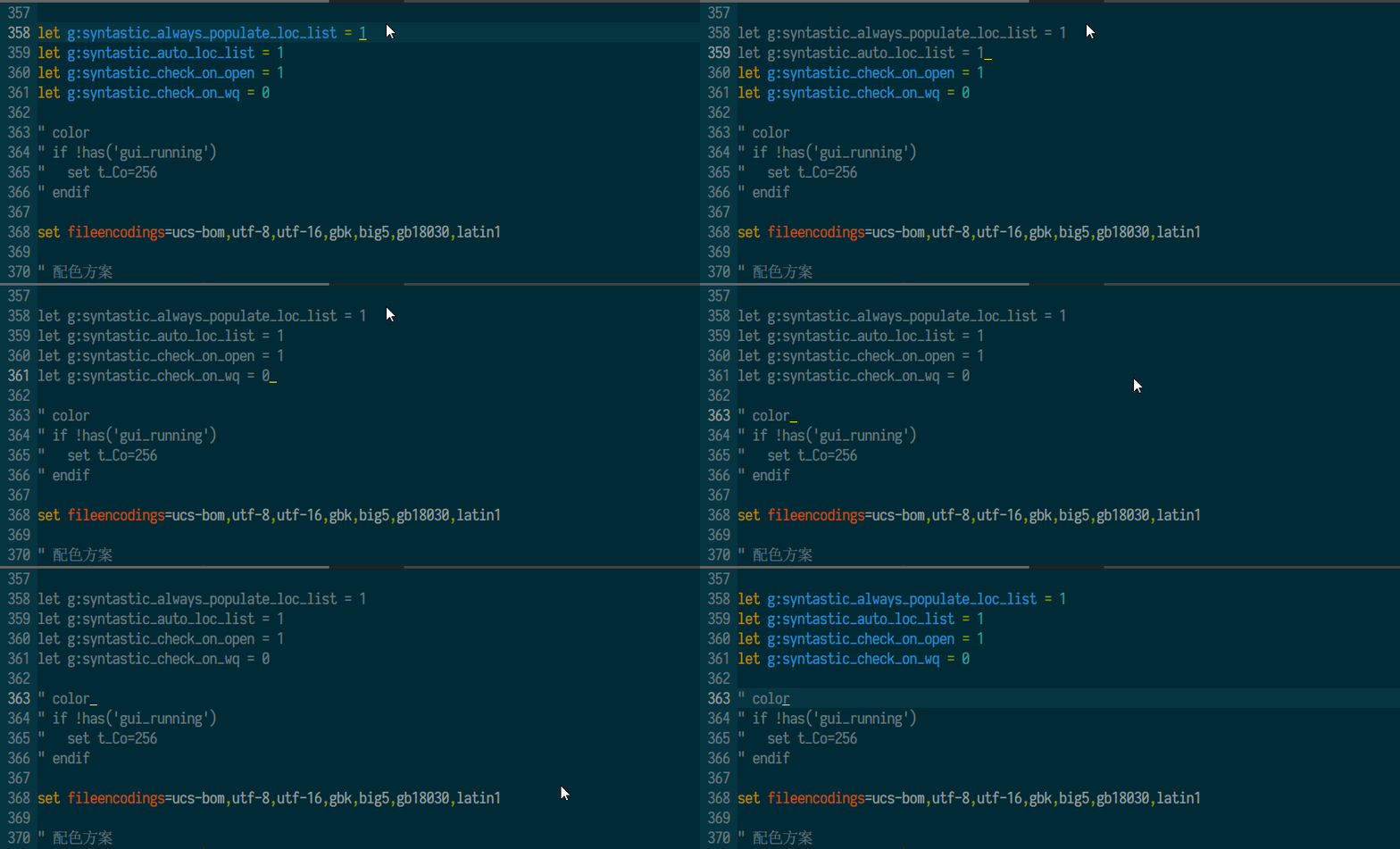
- After entering vim’s VISUAL mode, I found that selected lines couldn’t reverse display - they just lost highlighting. This makes it hard to see the exact selected characters (for example, comments also have no highlighting, making it hard to find selection boundaries).
The search result was a terminal support issue - it can’t recognize the
hi Visual gui=reversereverse command. So I manually adjusted the selected text colors.
hi Visual gui=reverse guifg=Black guibg=Grey
(Still in .vimrc, specifically right after theme colors)
before:
after:
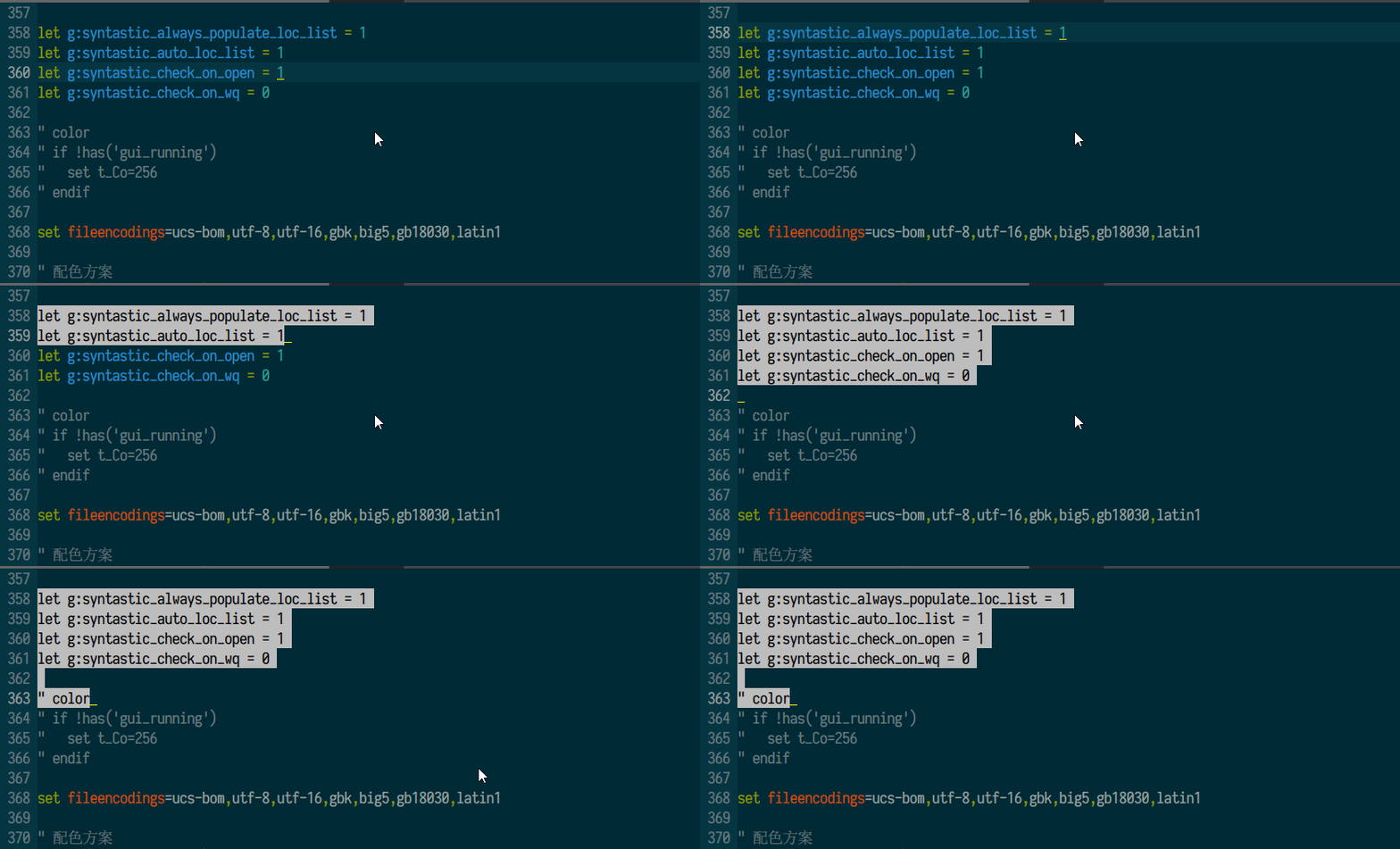
Both images show selecting lines 358-363
Addendum
During use, I also found a conflict between termdebug supported in vim 8.1 and true-color: if you set termguicolors after packadd termdebug, the currently executing line won’t be highlighted during actual debugging. The correct approach is to put packadd termdebug after set termguicolors.
Significance
From 256 color support to 160,000 color support, the literal meaning is smoother color transitions. In vim, it means code looks more comfortable (I wonder if there are corresponding True-color extensions for code syntax highlighting)
8-bit color is also known as 256 color, 24-bit color is also known as true color, with 16,777,216 colors total ↩︎
The history with this color scheme goes back to https://blog.csdn.net/zklth/article/details/8937905 - unfortunately most images in the article are broken, but I have a local Evernote version saved. ↩︎
